# Pricing Quotation exception lists
## Pricing Quotation exception lists
Pricing Quotation exception lists bring together records that need review outside the ordinary
Pricing Quotation lists. Use the Archived tab to choose one of five filters: **Archived**,
**Unquoted RFQs**, **Cancelled RFQs**, **Rejected Quotations**, or **Deleted**.
| If you need to… | Go to |
| --- | --- |
| Open the archived exception filters | [Open an exception list](#open-an-exception-list) |
| Identify the columns and controls on the list | [Read the exception-list results](#read-the-exception-list-results) |
| Choose the list that matches the record's exception | [Handle list variations and problems](#handle-list-variations-and-problems) |
| Continue with a record after reviewing a list | [Continue from an exception list](#continue-from-an-exception-list) |
| Understand the wider Pricing Quotation work area | [Pricing Quotation overview](doc:pricing-quotation-overview) |
| Work with current, non-exception records | [Pricing Quotation active lists](doc:pricing-quotation-active-lists) |
## Before you start
Before you open an exception list, make sure your account includes the Buyout Job Module. When the
module is included, the Pricing Quotation list loads; otherwise, the application shows the upgrade
surface. The list also appears only in the purchasing area of a saved job when the purchasing tab
and its feature conditions are met.
The column set comes from the list layout saved for your workspace. Work from the headers that are
visible in the list rather than expecting every available field on every exception route.
Prerequisites
- You have access to the Buyout Job Module.
- You are in the purchasing area where the Pricing Quotation list is available.
- You know which exception you need to review.
## Open an exception list
After you confirm access and the purchasing area, an exception filter gives you a saved route for
reviewing Pricing Quotation records grouped by the way they left the ordinary list. Open the filter
that matches the work you need to review.
Prerequisites
- You are on the Pricing Quotation list.
- The Archived tab is available.
Steps
1. Select **Archived** to open the archived list.
2. Select one filter from the table.
| If you need to review… | Select |
| --- | --- |
| records with no quotation | **Unquoted RFQs** |
| cancelled quotation requests | **Cancelled RFQs** |
| rejected quotations | **Rejected Quotations** |
| deleted Pricing Quotations | **Deleted** |
| the archived landing list | **Archived** |
3. Confirm the selected filter label at the top of the list.
**Result:** The selected exception list is open, and its filter label is visible above the results.
## Read the exception-list results
After you open a filter, each result row represents one Pricing Quotation record. The list currently
shows the fields in the saved layout, so the headers visible on your route are the fields available
for that view.
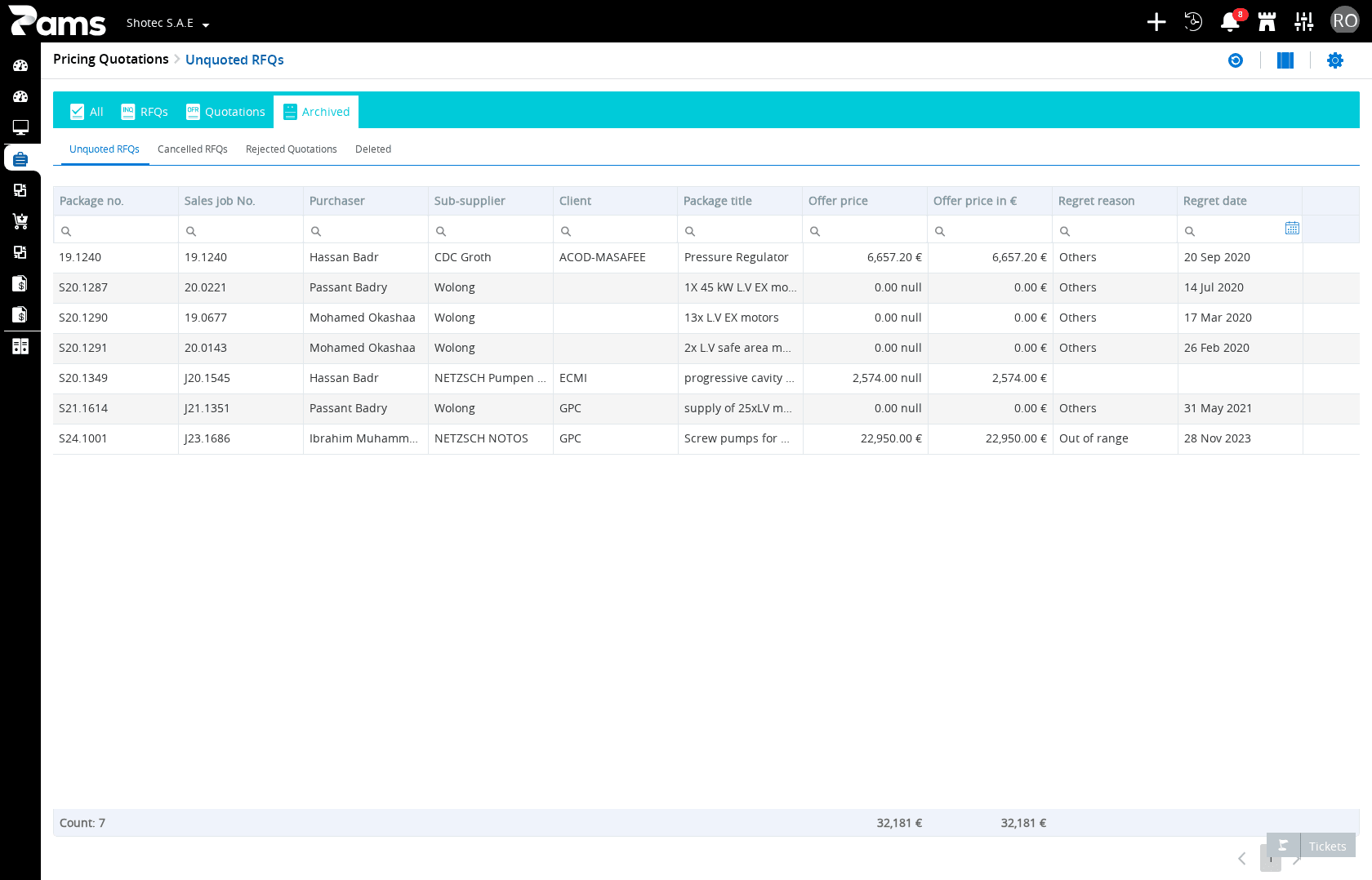
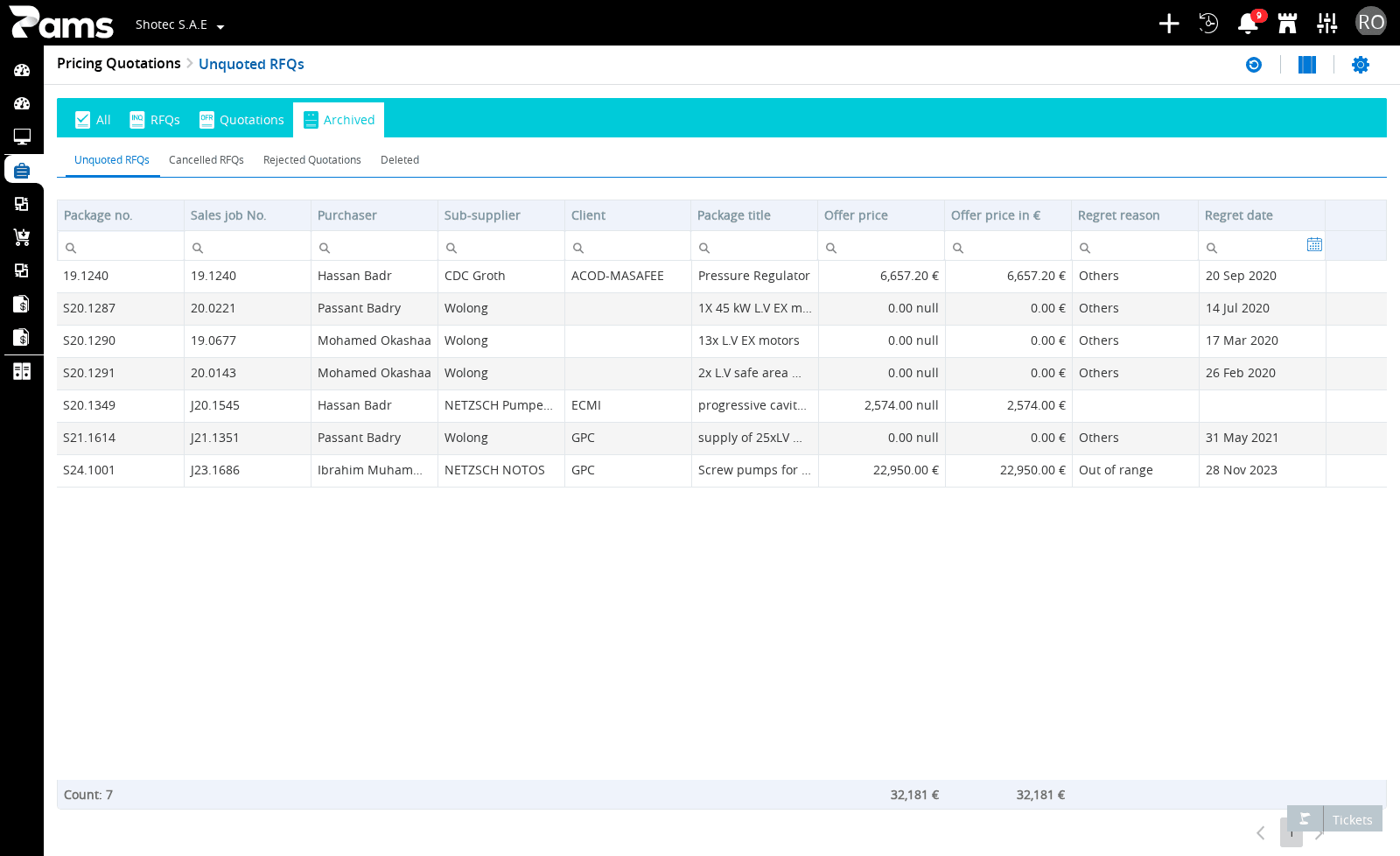
The main archived view shows these ten columns:
| Column | What the list displays |
| --- | --- |
| **Package no.** | The identifier assigned to the package |
| **Sales job No.** | The sales job associated with the package |
| **Purchaser** | The person responsible for purchasing |
| **Sub-supplier** | The supplier providing the package item |
| **Client** | The client associated with the package |
| **Package title** | The name describing the package |
| **Offer price** | The quoted amount for the offer |
| Offer price in € | The quoted amount expressed in euros |
| **Regret reason** | The reason recorded for the exception |
| **Regret date** | The date recorded for the exception |
The list definition includes twelve field types: job number, package stage, package, purchasing
responsible, sub-supplier, offer stage, offer type, offer date, offer price, order stage, order
date, and order price. The ten columns above are the ones shown in the main archived view.
The list also provides titled controls for **Refresh**, **Table Layout**, and **Settings**. The
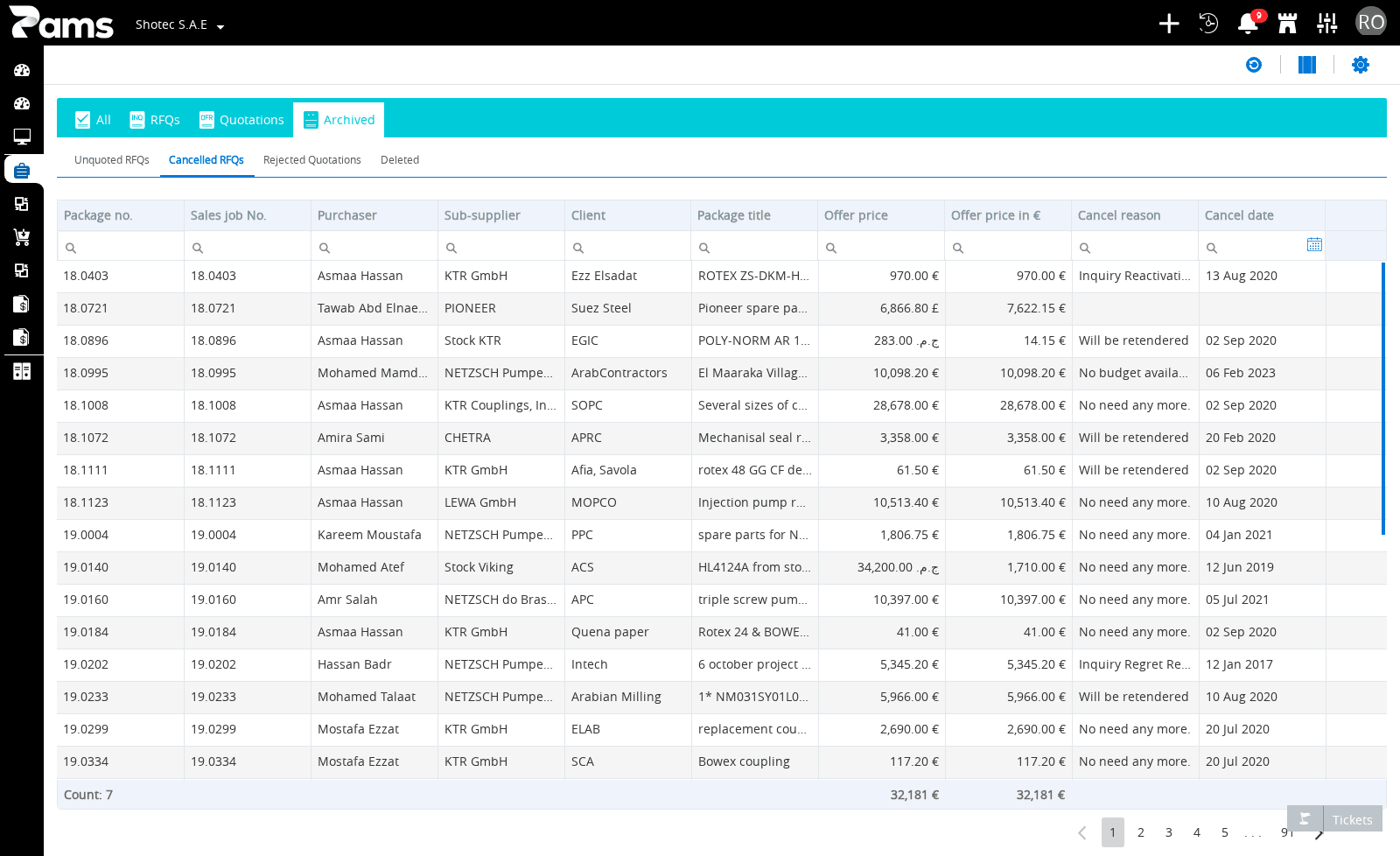
list has no labelled form fields. The **Cancelled RFQs** route shows ten columns, ending
with Cancel reason and Cancel date. The **Rejected Quotations** route shows ten columns, ending with
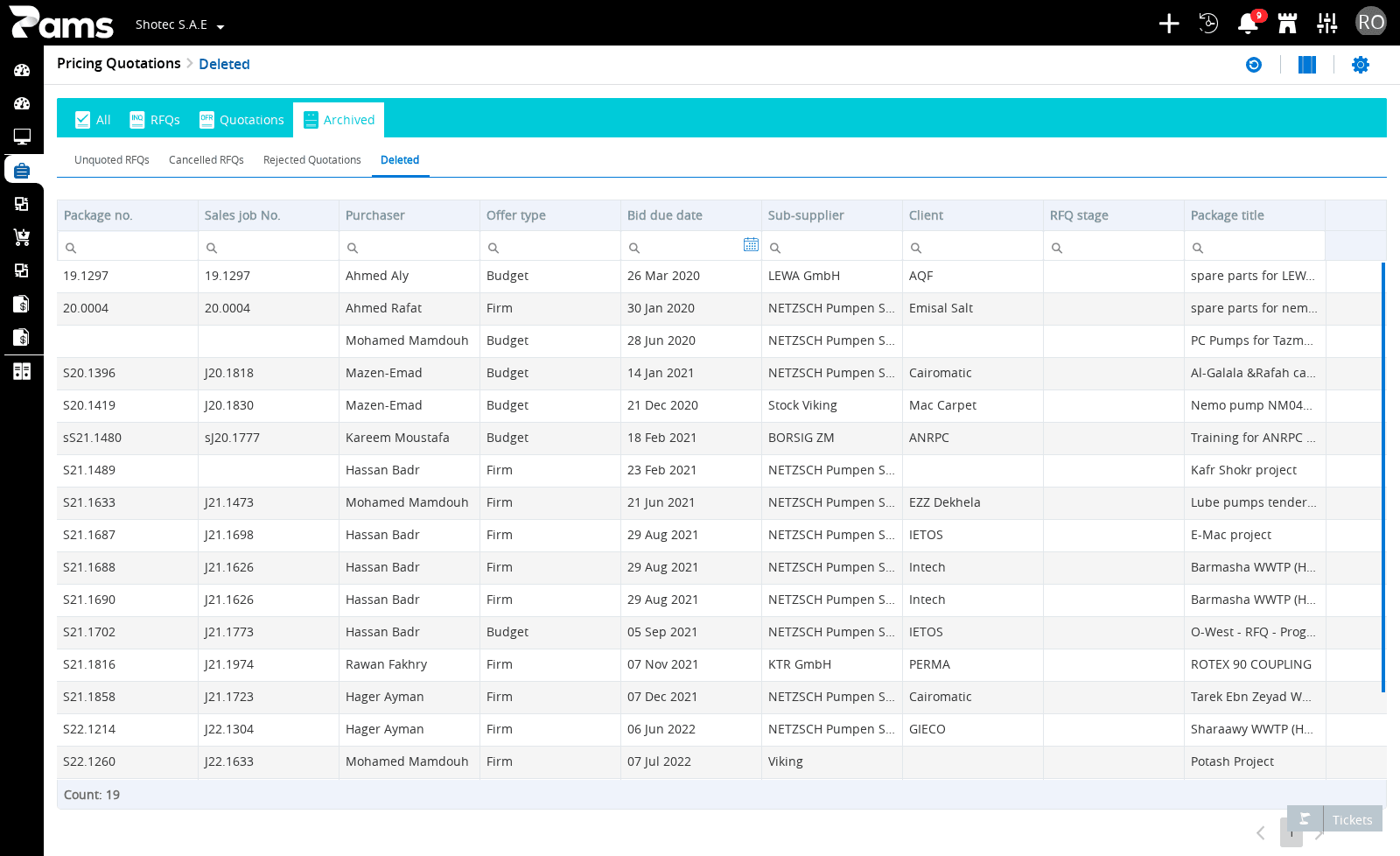
Reject date and Reject reason. The **Deleted** route shows nine columns: Package no., Sales job No.,
Purchaser, Offer type, Bid due date, Sub-supplier, Client, RFQ stage, and Package title.
## Handle list variations and problems
Each filter sends the list request for a different exception stage. Use this procedure to choose
the appropriate filter and respond when a list operation stops.
Prerequisites
- You are on the Pricing Quotation list.
- The Archived filter set is open.
Steps
1. Select the filter that matches the exception you are reviewing.
| If you need to review… | Select | List stage used by the route |
| --- | --- | --- |
| records with no quotation | **Unquoted RFQs** | regretted-offer stage |
| cancelled quotation requests | **Cancelled RFQs** | cancelled-offer stage |
| rejected quotations | **Rejected Quotations** | rejected-offer stage |
| deleted Pricing Quotations | **Deleted** | deleted stage |
| the archived landing list | **Archived** | archived list |
2. Remove forbidden characters, confirm that rows exist before exporting, or retry the list operation according to the matching message.
| Message | Action |
| --- | --- |
| `Forbidden characters detected. Please remove them and try again.` | Remove the forbidden characters from the filter value and submit the filter again. |
| `NO Data to Export` | Confirm that the list contains data before exporting. |
| Load data failed: `<message>` | Check the message detail and retry the list operation. |
```text
Load data failed: ``
```
The archived sub-navigation also contains the parent **Archived** control. Cancelled Orders and
rejected orders are not active choices in this filter set.
**Result:** The selected exception list remains on screen with its filter label visible, or the
message-specific correction is ready for the next list attempt.
## Continue from an exception list
After you choose a filter and respond to any list message, continue in the Pricing Quotation record
when you need to work on that record. The record page owns the actions available after the list.
Steps
1. Choose how to continue from the row.
| If you need to… | Action |
| --- | --- |
| open the record in the current page | Select a row cell other than the edit cell. |
| open the record in another browser tab | From the row context menu, select **Open in new tab**. |
Continue with the [Purchase job record](doc:purchase-job-record) page for record actions. Return to [Pricing
Quotation active lists](doc:pricing-quotation-active-lists) when you need the corresponding active
work lists.
**Result:** The selected record opens in its record page, or the record opens in a new browser tab
when you select **Open in new tab**.