# Work with an issue
## What an issue record is
An issue record is a report about a documentation problem that the team can review,
update, discuss, and move through its status journey.
Internal teams use the record to coordinate work after a reader reports a problem.
| If you need to… | Go to… |
|---|---|
| Find an existing issue | [Find and open an issue](#find-and-open-an-issue) |
| Understand the record before changing it | [Read the issue record](#read-the-issue-record) |
| Change triage details or reply | [Update and respond to an issue](#update-and-respond-to-an-issue) |
| Add an issue to a board or filter the list | [Handle boards, filters, and status branches](#handle-boards-filters-and-status-branches) |
| Resolve an error or empty state | [When an issue action does not work](#when-an-issue-action-does-not-work) |
| Continue after a status change | [Know what happens next](#know-what-happens-next) |
| Review the Issues destination and its views | [Issues overview](doc:issues-overview) |
| Manage boards | [Manage issue boards](doc:manage-issue-boards) |
| Review status recovery | [Issue states and recovery](doc:issue-states-and-recovery) |
## Before you start
**Prerequisites**
| Have this ready | Why it matters |
|---|---|
| Access to the project that contains the issue | Issues are scoped to a project. |
| The issue information you need to review | The record route requires an existing issue identifier. |
| A saved issue record | The record page is opened from the list of existing issues. |
| The change or response you need to make | The available work includes triage updates, description editing, replies, internal notes, and closure choices. |
The record and list screens declare no required-field marker.
The record screen also has no confirmation dialog before its status, description, assignee,
priority, comment, close, or board actions.
## Find and open an issue
The **All Issues** view is the list for finding an existing issue and opening its record.
**Prerequisites**
- You have access to the project containing the issue.
- You know enough about the issue to recognise its row.
**Steps**
1. Open the **All Issues** view.
2. Select **All**, Open, In Progress, Resolved, or Closed, or choose **Category**, **Type**, Priority, Sort, or Group as applicable.
| If you need to… | Choose… |
|---|---|
| Narrow by status | **All**, **Open**, **In Progress**, **Resolved**, or **Closed** |
| Filter by issue details | **Category**, **Type**, Priority, Sort, or Group |
| Search by text | **Search issues…** |
3. Select the issue row to open its record.
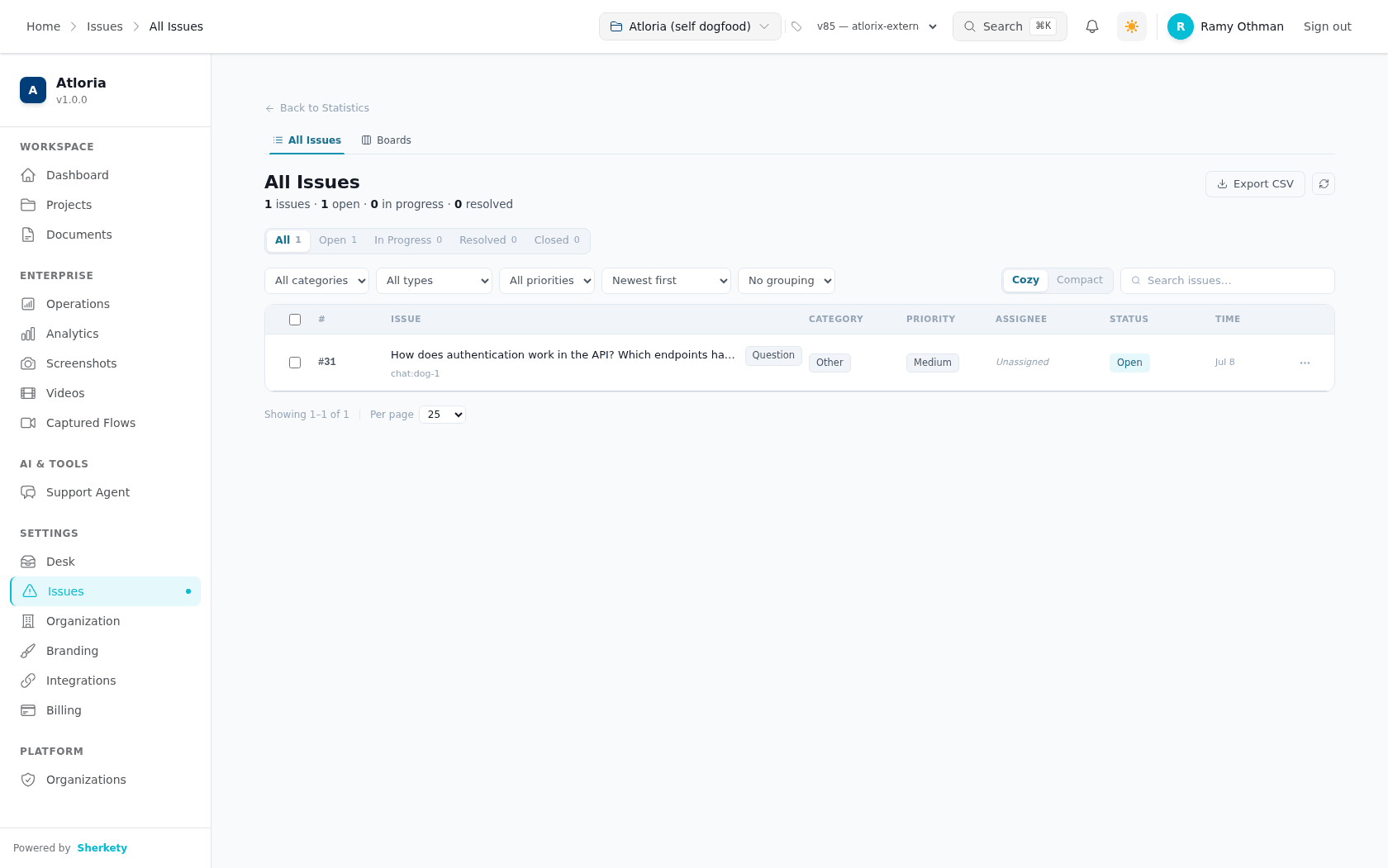
**Result:** The issue record opens.
## Read the issue record
An issue record brings the report, its current handling details, and its activity into one place.
The top of the record identifies the report and shows its current status, priority, type, and
category.
The record also shows the reporter, assignee, reported time, reported page, and **Status Journey**.
| Area | What you can read or change |
|---|---|
| **What the reader said** | The issue description; use **Show more** or **Show less** to change how much text is visible, and **Edit** to open the editor. |
| Activity Timeline | Comments, status changes, and assignments; use **All**, **Comments**, or **Updates** to filter the timeline. |
| **Manage** | **Status**, **Priority**, and **Assignee**. |
| **Details** | Type, Category, and Reporter. |
| **Environment** | Browser, scroll position, and **Open reported page** when reported environment data exists. |
| **Close Issue** | **Fixed**, **Duplicate**, **Won't Fix**, and **Not Reproducible** when the issue is not **Closed**. |
| Comment composer | **Public reply** or **Internal**, followed by **Send reply** or **Add note**. |
The record's **Status** options are Open, In Progress, Waiting on customer, Paused,
Resolved, and Closed.
Its **Priority** options are **Critical**, **High**, **Medium**, and **Low**.
The **Assignee** list includes **Unassigned** and member options.
The record shows **Start Working** when its status is **Open**, **Mark as Resolved** when its
status is **In Progress**, **Close as Fixed** when its status is **Resolved**, and **Reopen Issue**
when its status is **Closed**.
## Update and respond to an issue
Updating an issue keeps its triage details and conversation together so the next person can see
what has happened.
### Change triage details
**Prerequisites**
- You have opened the issue record.
- You know the new status, priority, or assignee to apply.
**Steps**
1. In **Status**, choose Open, In Progress, Waiting on customer, Paused, Resolved, or Closed.
2. In **Priority**, choose **Critical**, **High**, **Medium**, or **Low**.
3. In **Assignee**, choose **Unassigned** or a member option.
4. Follow the status-specific action that appears: select **Start Working**, **Mark as Resolved**, **Close as Fixed**, or **Reopen Issue**.
**Result:** The selected issue detail is submitted for update, and the record is fetched again.
When the update succeeds, the message is `Assignee updated` for an assignee change or the
capitalized field name followed by `updated` for another field.
### Edit the description
**Prerequisites**
- You have opened the issue record.
- You have the corrected description ready.
**Steps**
1. Select **Edit** in **What the reader said**.
2. Enter the corrected description in the text area.
3. Select **Save**.
4. Select **Cancel** instead when you want to discard the edit.
**Result:** The description editor closes; a changed description is submitted, while **Cancel**
discards the edit.
### Send a reply or add an internal note
**Prerequisites**
- You have opened the issue record.
- You have the message ready.
**Steps**
1. Choose the comment visibility that matches the audience.
| If the message is for… | Select… |
|---|---|
| The reporter | **Public reply** |
| The team | **Internal** |
2. Enter the message in the comment box.
3. Select **Send reply** or **Add note** according to the message visibility.
| Visibility | Select… |
|---|---|
| Public reply | **Send reply** |
| Internal | **Add note** |
**Result:** The comment is submitted and the timeline is fetched again.
The success message is `Comment added`.
## Handle boards, filters, and status branches
These choices let you work with the issue in the list or coordinate it on a board without changing
the issue's meaning.
### Choose a list view
**Prerequisites**
- You are in the **All Issues** view.
**Steps**
1. Choose **Category**, **Type**, Priority, Sort, Group, **Cozy**, **Compact**, or Per page as applicable.
| If you need to… | Choose… |
|---|---|
| Filter by category | **All categories**, **Incorrect**, **Outdated**, **Missing info**, **Unclear**, **Broken link**, **Code broken**, **Typo**, or **Other** in **Category** |
| Filter by type | **All types**, **Doc issue**, **Question**, **Bug**, **Feature request**, or **Other** in **Type** |
| Filter by priority | **All priorities**, **Critical**, **High**, **Medium**, or **Low** in **Priority** |
| Sort the list | **Newest first**, **Oldest first**, **Priority (high first)**, or **Recently updated** in **Sort** |
| Group the list | No grouping, Status, Priority, or Category in Group |
| Change row density | **Cozy** or **Compact** |
| Change page size | **10**, **25**, **50**, or **100** in **Per page** |
**Result:** The list is displayed using the selected status, filters, order, grouping, density,
and page size.
### Add an issue to a board
**Prerequisites**
- You have opened an issue record or selected issues in the list.
- You have a board available to choose.
**Steps**
1. Select **Add to Board**.
2. Enter a board name in **Search boards...** when you need to narrow the board list.
3. Select the board name for the action you need.
| Board state | What selecting the board name does |
|---|---|
| The issue is not on the board | Adds the issue or selected issues to the board |
| The issue is already on the board | Removes the issue from the board |
**Result:** The issue is added to or removed from the selected board.
The confirmation names the selected board.
## When an issue action does not work
Use the message or empty state on screen to identify the next action.
Successful updates use `Assignee updated` for an assignee change and the capitalized field name
followed by `updated` for other field changes.
Board confirmations read `Added issue(s) to ""` or
`Removed from ""`.
| What you see | What it means | What to do |
|---|---|---|
| `Update failed` | The field update did not complete. | Check the selected value and try the field update again. |
| `Assignee updated` | The assignee update completed. | Continue with the issue record. |
| ` updated` | Another field update completed; the message uses the field name with its first letter capitalized, followed by `updated`. | Continue with the issue record. |
| `Issue closed` | The close action completed. | Continue with the issue record. |
| `Close failed` | The close action did not complete. | Choose a close reason again. |
| `Failed to add comment` | The comment submission did not complete. | Check the comment text and submit it again. |
| `Added issue(s) to ""` | The issue or selected issues were added to the selected board. | Continue with the issue record or board work. |
| `Removed from ""` | The issue was removed from the selected board. | Continue with the issue record or board work. |
| `Couldn't add to board` | Adding the issue to the board did not complete. | Choose the board again. |
| `Couldn't remove` | Removing the issue from the board did not complete. | Choose the board again. |
| Board-add error | The app may show an error message or the fallback `Couldn't add to board`. | Follow the message shown on screen and retry the board action. |
| Board-removal error | The app may show an error message or the fallback `Couldn't remove`. | Follow the message shown on screen and retry the board action. |
| `Issue not found` | The requested issue record is unavailable. | Select **Back to Issues**, then use the list to choose an issue. |
| `No comments yet` | The selected timeline view has no comments. | Select **All** or add a reply. |
| `No updates yet` | The selected timeline view has no updates. | Select **All** or change the issue. |
| `No activity yet` | The selected timeline view has no activity. | Select **All** or add a reply. |
| `No boards match` | The board search has no matching result. | Change the text in **Search boards...**. |
| `No boards yet` | No board is available in the picker. | Close the picker and continue with the issue record. |
| `No issues yet` | The list contains no issues. | Check the selected project and list view. |
| `No issues match your filters` | The current list filters return no issues. | Select **Clear all**. |
## Know what happens next
An issue moves through **Open**, **In Progress**, **Resolved**, and **Closed** as the team works
through it.
The status-specific actions show the next available move on the record: **Start Working**,
**Mark as Resolved**, **Close as Fixed**, or **Reopen Issue**.
When the issue needs board coordination, continue with [Manage issue boards](doc:manage-issue-boards).
For status meanings and recovery, continue with [Issue states and recovery](doc:issue-states-and-recovery).
For general help routing, continue with [Getting help](doc:getting-help).